How to Get AIs Working Together in Real Time
When I have AIs cross-check each other,
or split a big project into parts and then merge the results,
I catch myself writing and explaining the same thing over and over. ^^;
So I set things up so the two AIs pass work to each other through files in the same folder.
and GPT and Claude hand work back and forth through it.
A Folder the AIs Share
Inside me, my AI work folder, I made a folder called live_collaboration.
Both the GPT and Claude desktop apps have me open as their work folder.
When one AI leaves an MD file in this folder, the other AI reads it and replies.
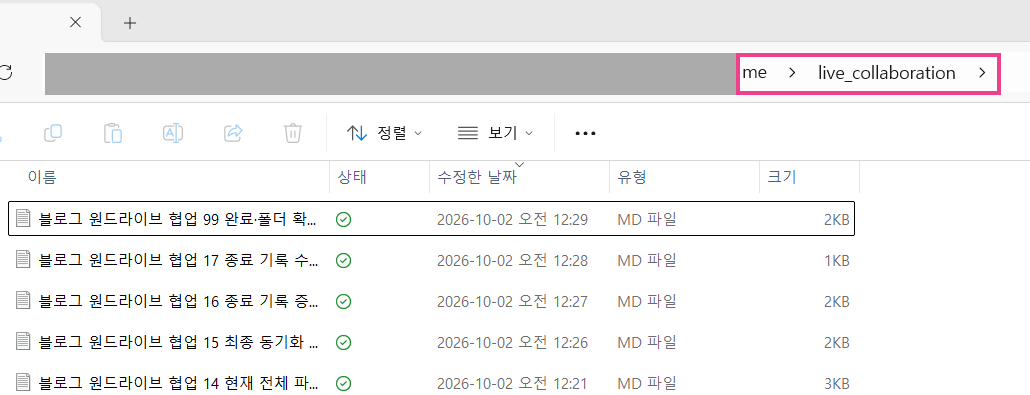
Real-Time Reviews
This time, I had GPT write down what it had done so far, and what it wanted Claude to check, in an MD (Markdown) file.
Then I asked Claude to read that file and review it.
Claude didn’t touch the original and left its review in a separate MD file.
GPT read the review, applied it, and asked for another review.
I no longer had to write the same explanation twice.
live_collaboration is just the folder name I picked.
Here’s the naming rule I set for the MD files that go in it.
Each file name starts with the project, number, and task.
Then comes → receiving AI - date·time writing AI.md.
Example: Blog collab 05 draft review → GPT - 2026-10-02 0005 Claude.md
The 5th file in the blog collaboration: Claude reviewed the draft and sent it to GPT.
You can tell at a glance who should read which file next.
Quick note!
If you subscribe to both Claude Pro or Max and ChatGPT, you can have GPT get Claude's review directly.
GPT runs Claude Code, installed on your computer, and brings back Claude's review.
To go the other way and have Claude call GPT, install OpenAI's Codex plugin in Claude Code.
(As of October 4, 2026)
What Real-Time Collaboration Looks Like
The two AIs don’t share their chats automatically.
By real-time collaboration, I mean that when a new file appears, the other AI reads it and replies.
 GPT
GPTrequest MD →← ④ Read and
apply
new file →← ③ Leave a
review MD
 Claude
My Request Prompts (Give It a Try!)
Just change the yellow parts to fit your situation.
This is how I make the request.
A Folder That Links Two Laptops Too
My me folder lives in OneDrive, so the same files show up on my other laptop in real time.
These days I often tell the AI, “Do it yourself.”
Then the AI takes over the screen itself, from clicking in Chrome to typing code.
This feature is called Computer Use.
While it runs, touching the laptop gets in the AI’s way, so I can’t do anything on it.
So it was handy to keep working on other things from my other laptop.
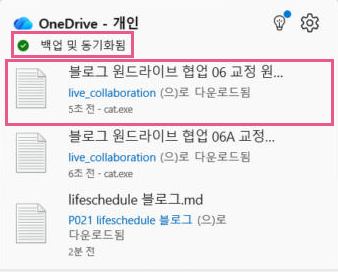
One member of my study group works on a Mac mini,
and every time they move files to their Windows desktop, they zip them onto a USB drive.
the key is "sync."
Sync means that when you add or change a file on one computer, the same file automatically updates on the other.
Put the collaboration folder inside a synced folder, and the AIs can keep passing work back and forth, whether you switch from Windows to Mac or use both devices at once.
OneDrive and Google Drive both sync on Mac and Windows.
With Google Drive, make an AI work folder like my me, and put a live_collaboration folder inside it.
Try It with Google Drive (Give It a Try!)
Just change the yellow parts to fit your situation.